
Writing a new record
This page covers writing a new record with Ghostwriter, from choosing what to write to putting the draft into the form. To change a record that already exists, see Editing an existing record.
Starting
Open a resource's Create page and click Write with Ghostwriter at the top. Or click Write with Ghostwriter on its list page, if you've added it there. The button shows on the Create pages of the resources Ghostwriter writes for, once the trait is added, for people allowed to use Ghostwriter.
On an existing record's Edit page, the button is Edit with Ghostwriter. See Editing an existing record.
You can also start from Ghostwriter's own pages: Write beside a resource on the Overview, Write something on the widget, the last step of Get started, or Draft this on an idea in the content plan. Each opens the Create page with Ghostwriter already open.
Ghostwriter opens in a large panel over the form. The form stays where it is underneath.
What are you writing?
Choose what this record is:
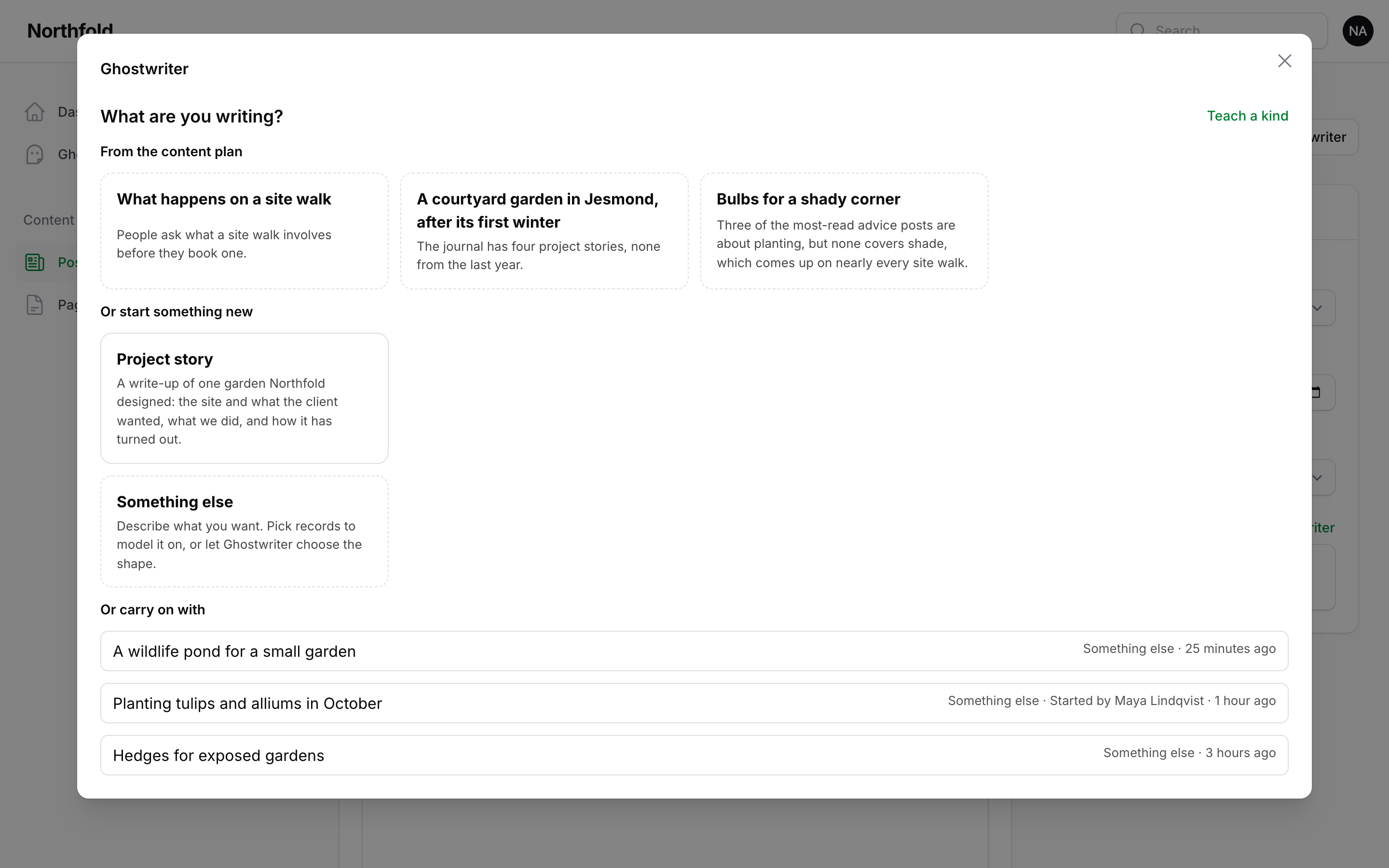
- From the content plan, shown first: an idea on the content plan for this resource. Its kind is chosen, its title and notes go into the quick brief, and Ghostwriter fills in the brief from them straight away.
- A kind you taught it, such as "Case study". It asks that kind's own questions, and models the record on that kind's examples, which are shown ticked under Model it on: change them for this piece if you like. See Kinds of content.
- Something like what is already here: groups of records built the same way (the same Builder blocks), found from the resource's own records, such as "Like About, Services and 3 more". Choosing one starts the general brief, modelled on those records. Hover to see which records they are. Shown only when a resource holds more than one shape of record.
- Something else: a general brief for anything. Tick up to six records to model it on, or leave them all unticked to let Ghostwriter choose the shape. Once six are ticked, the rest can't be ticked until you untick one.
Teach a kind, beside the heading, opens the kinds page for this resource, for something you write often.
Below these, Or carry on with lists the pieces on this resource whose record isn't saved yet, with their kind. With shared conversations on (the default) that's everyone's pieces, with who started each; otherwise only yours. One already put into the form says so ("in the form, not saved").
The brief
Answer the questions. Short answers are fine; Ghostwriter asks for anything it still needs before it writes.
Without a voice guide, a notice says Ghostwriter will still write, but in a plain voice rather than yours, with a link to write the guide.
Quick brief. If you'd rather not fill in every question, give a working title and a few notes, then click Fill in the brief (or press Enter in the working title). Ghostwriter fills in the questions from them, and the button becomes Guess again. Check them over: anything in [square brackets] needs you.
Pressing Enter never starts writing: only Start writing does.
Then click Start writing.
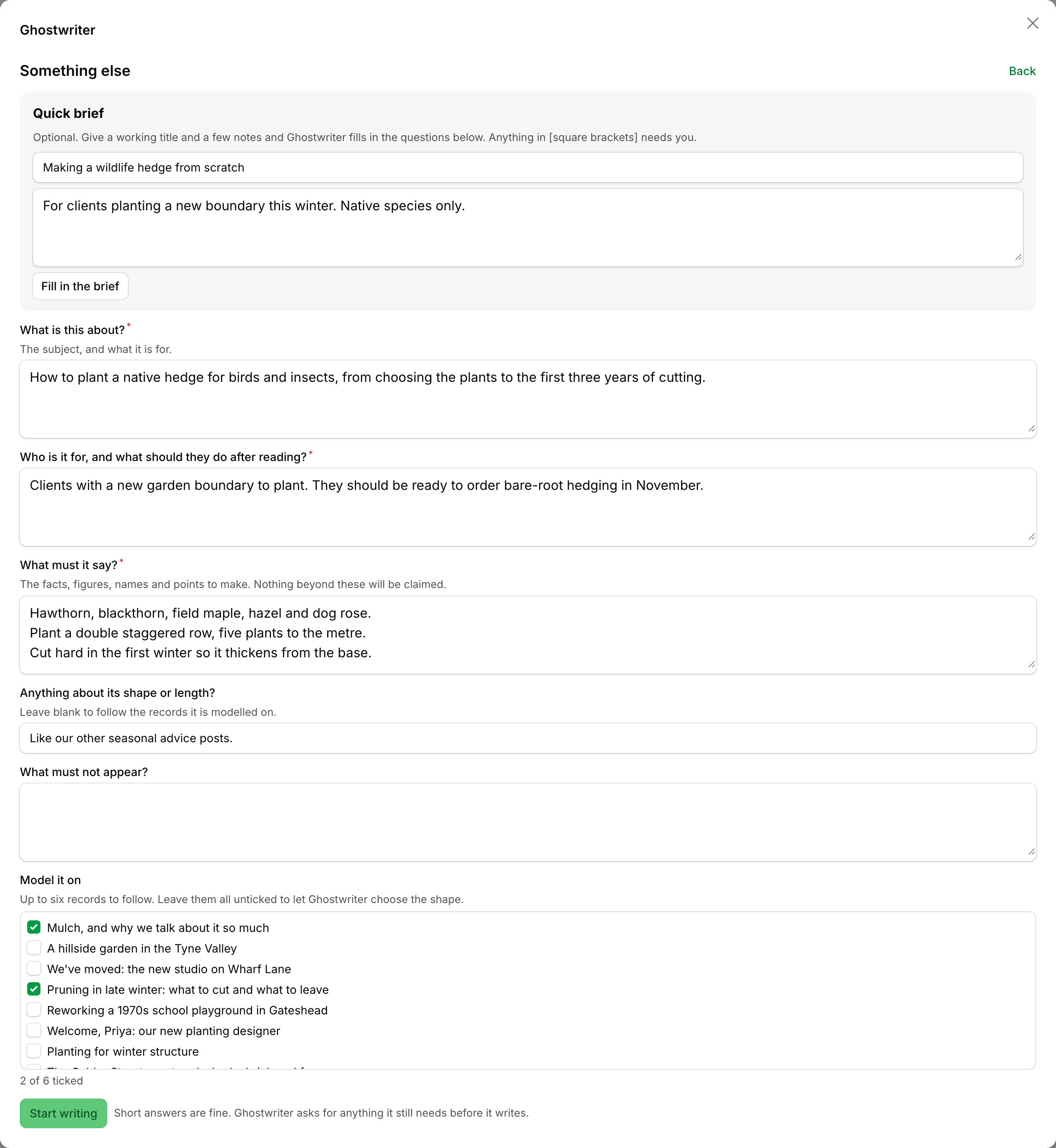
An idea from the content plan fills the brief by itself: its title and notes go into the quick brief, and Ghostwriter fills in the questions from them.
Ghostwriter uses only facts from the brief and the conversation. It doesn't invent figures, quotes or client names. Where it needs something it doesn't have, it asks, or leaves a
[note in square brackets]for you.
The conversation
While Ghostwriter works, a line says what it's probably doing ("Reading the brief…", "Thinking it through…", "Writing. Long drafts take a while…"; "Revising the draft…" for a change) with a timer, and screen readers announce it.
If Ghostwriter needs more before it can write, it asks. Its question is highlighted, headed Ghostwriter needs your answer, and the cursor moves to the answer box. Above the box it says "Your turn: answer the questions above and the draft follows." (or, once there is a draft, "Your turn: answer above to carry on."). Answer there, or click Just draft it with what you have to have it write now and mark the gaps in [square brackets].
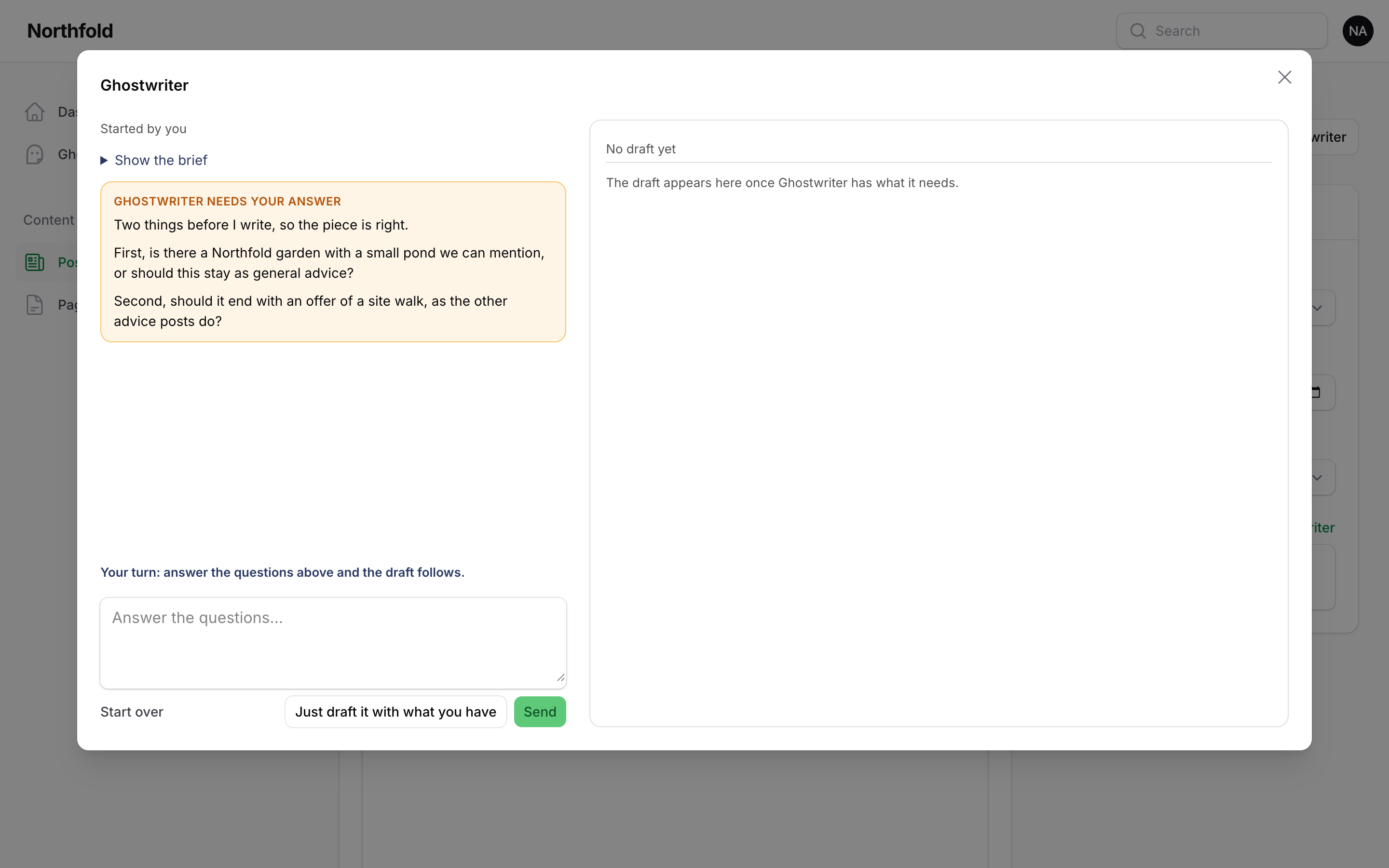
Ghostwriter's replies are shown with their formatting: lists, bold and links.
Once there is a draft, ask for changes in plain words:
- "Make the opening shorter."
- "Add a section on cost, after the process."
- "Less formal."
Press ⌘↵ (or Ctrl+↵) to send, or click Send. A draft usually takes a minute or two. Show the brief shows what you asked for at the start.
Each draft adds a line to the conversation, such as "Draft written · 232 words" or "Draft updated · 240 words".
The draft
The draft sits on the right, laid out the way the form is built: its fields, and any Builder blocks or Repeater rows in order.
- Blocks / Text switches between the full layout and just the words.
- Change any writing where it's shown. The draft says "Click any writing (or Tab to it) to change it. It's saved when you leave it; Esc puts it back." Click it, or press Tab to reach it, and type. It's saved when you leave it (click elsewhere or press Tab). Esc puts it back as it was, and Enter finishes a one-line piece such as a title. Rich text is edited as rich text: ⌘B/Ctrl+B and the like work, and pasted formatting is kept as headings, lists, bold, italics and links.
- Edit YAML opens the whole draft as text, to add, move or remove blocks. Most people never need it.
While Ghostwriter is working, the draft can't be changed: the writing isn't editable, and Edit YAML is off until it finishes, since what it writes would replace the change.
If a draft can't be read (for example after a YAML edit that broke it), the YAML editor opens by itself with the problem above it, so you can put it right and save.
The word count is shown at the top. A block type the resource doesn't have is flagged, and left out when the draft is used. A block with nothing to write says "Uses its usual settings."
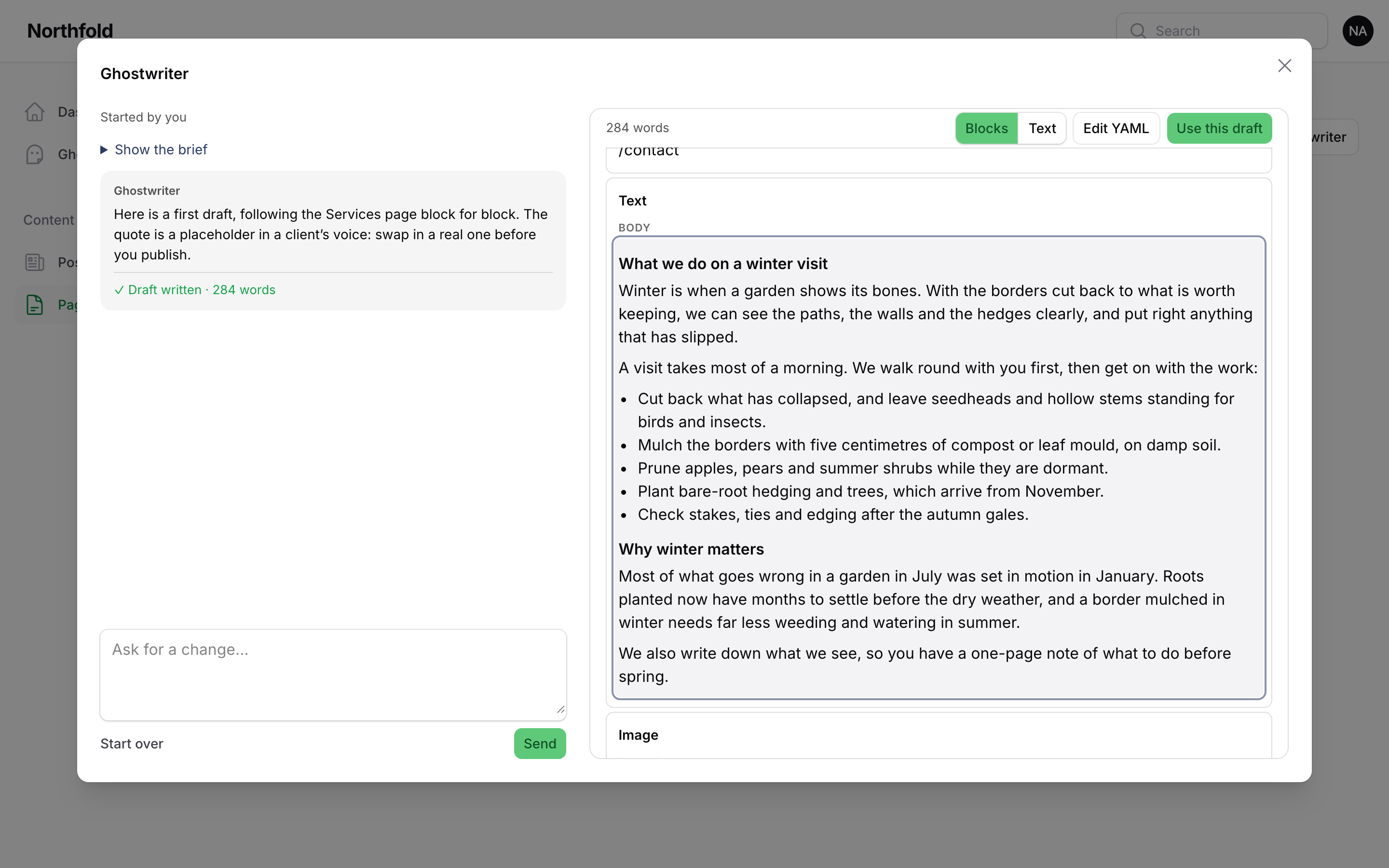
The panel follows the panel's dark mode.
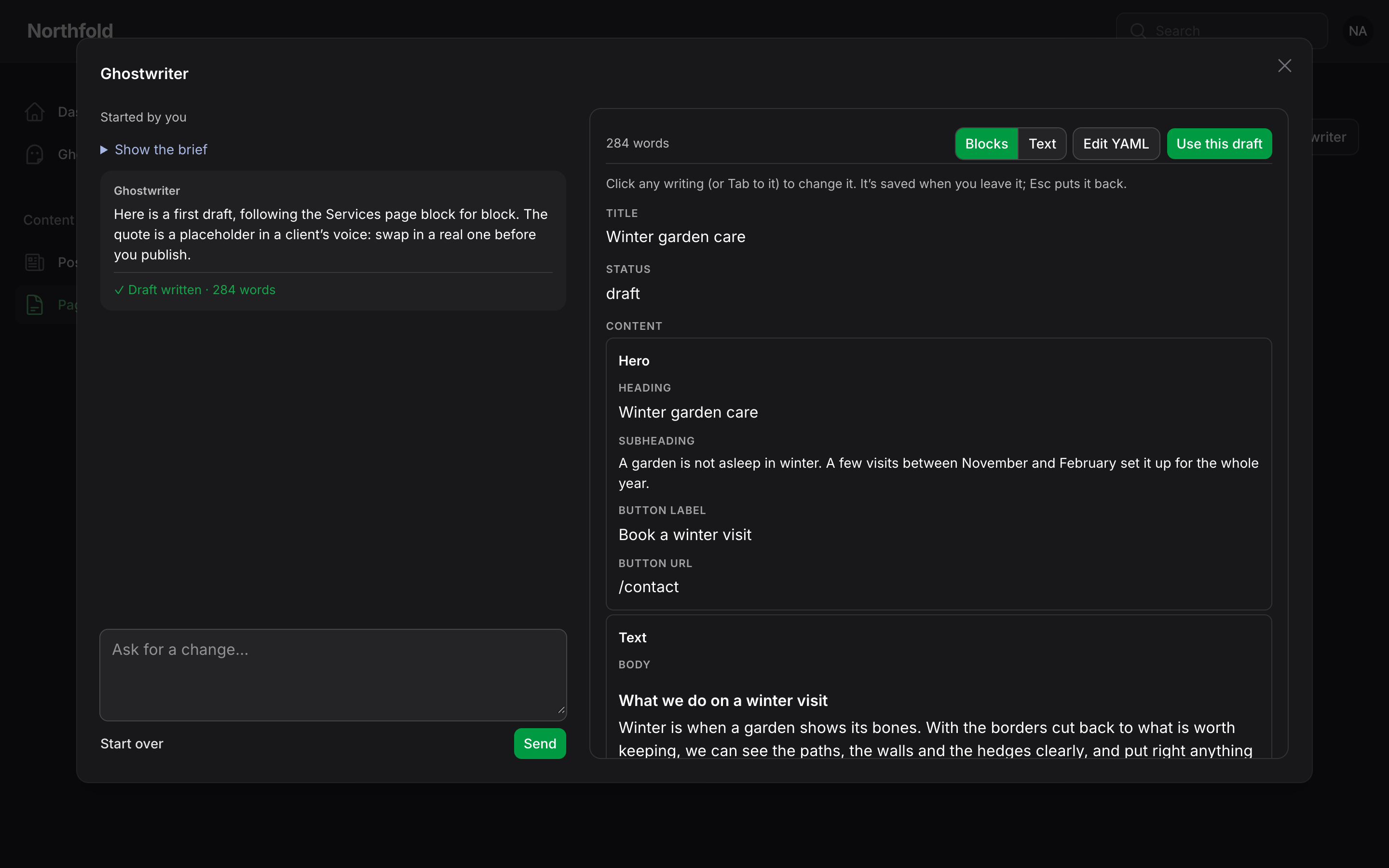
Use this draft
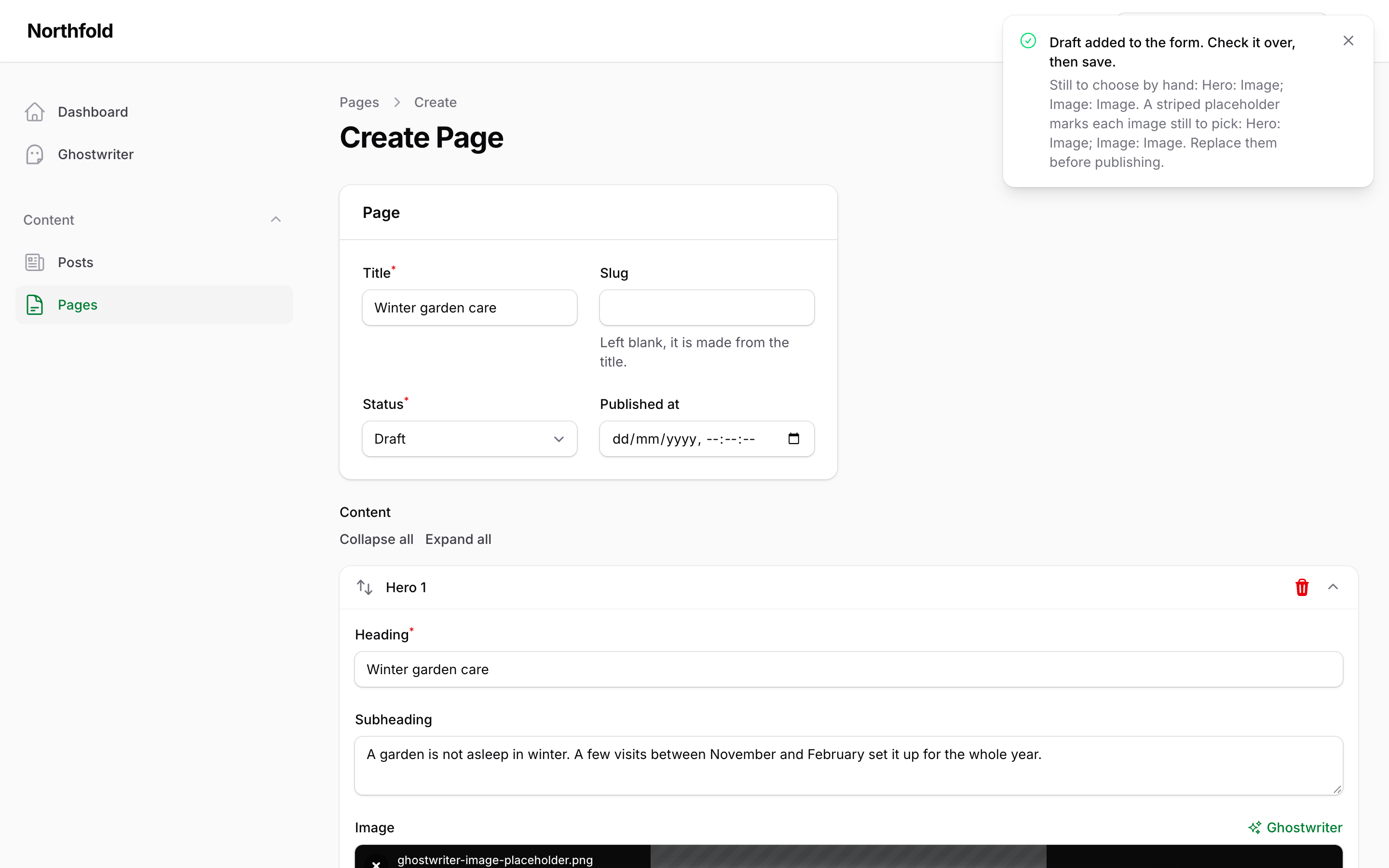
Use this draft puts the draft into the form and closes the panel.
- Nothing is saved. The form is filled in, just as if you had typed it. Check it over, then click Create as usual, or leave the page to throw it away.
- Using it again replaces what is in the form.
- Opening the panel again carries on with the same piece, with a line saying it's already in the form.
A notification says "Draft added to the form. Check it over, then save." If there's anything still for you to do, it lists it, and stays until you close it. For example:
- Fields it leaves for a person: relationships, dates, uploads, anything switched off.
- Settings that differ from record to record, which it couldn't copy from the house style.
- Image fields marked with a striped placeholder, where the resource's records usually have a picture. Replace them with the image button.
Carrying on later
The conversation is saved as you go. Close the panel and open it again on the same page, and it carries on with the last piece you were on. The page's address names the piece, so a reload reopens it too. Coming back to the Create page later, choose it under Or carry on with, click it under Carry on on the Overview, or click Resume on its idea in the content plan.
Start over goes back to What are you writing?, and the panel opens there next time. The earlier piece isn't deleted; it is still offered under Or carry on with.
A piece leaves In progress once its record is saved. A draft put into the form and left unsaved is still listed, under Or carry on with and Carry on.
Sharing conversations
Conversations are shared with everyone who may use Ghostwriter, so a colleague can pick a piece up where you left it. Each message shows who sent it, and the panel says who started the piece and who last changed it. See Shared conversations.