
Writing a new entry
This page covers writing a new entry with Ghostwriter: choosing what to write, the brief, the conversation, the draft, and putting it into the form.
Starting
Open a collection's Create Entry screen and click Write with Ghostwriter, to the left of Save & Publish. The button appears on new entries in the collections Ghostwriter writes for, for people with the Ghostwriter permission. On an existing entry the button is Edit with Ghostwriter; see Editing an existing entry.
You can also start from:
- Write beside a collection on the Overview;
- Write something on the dashboard widget;
- Write with Ghostwriter in a collection's actions menu, on its entry list;
- Draft this on an idea in the content plan.
Each opens a new entry with Ghostwriter already open. Ghostwriter opens in a full-width slide-over; the entry form stays underneath.
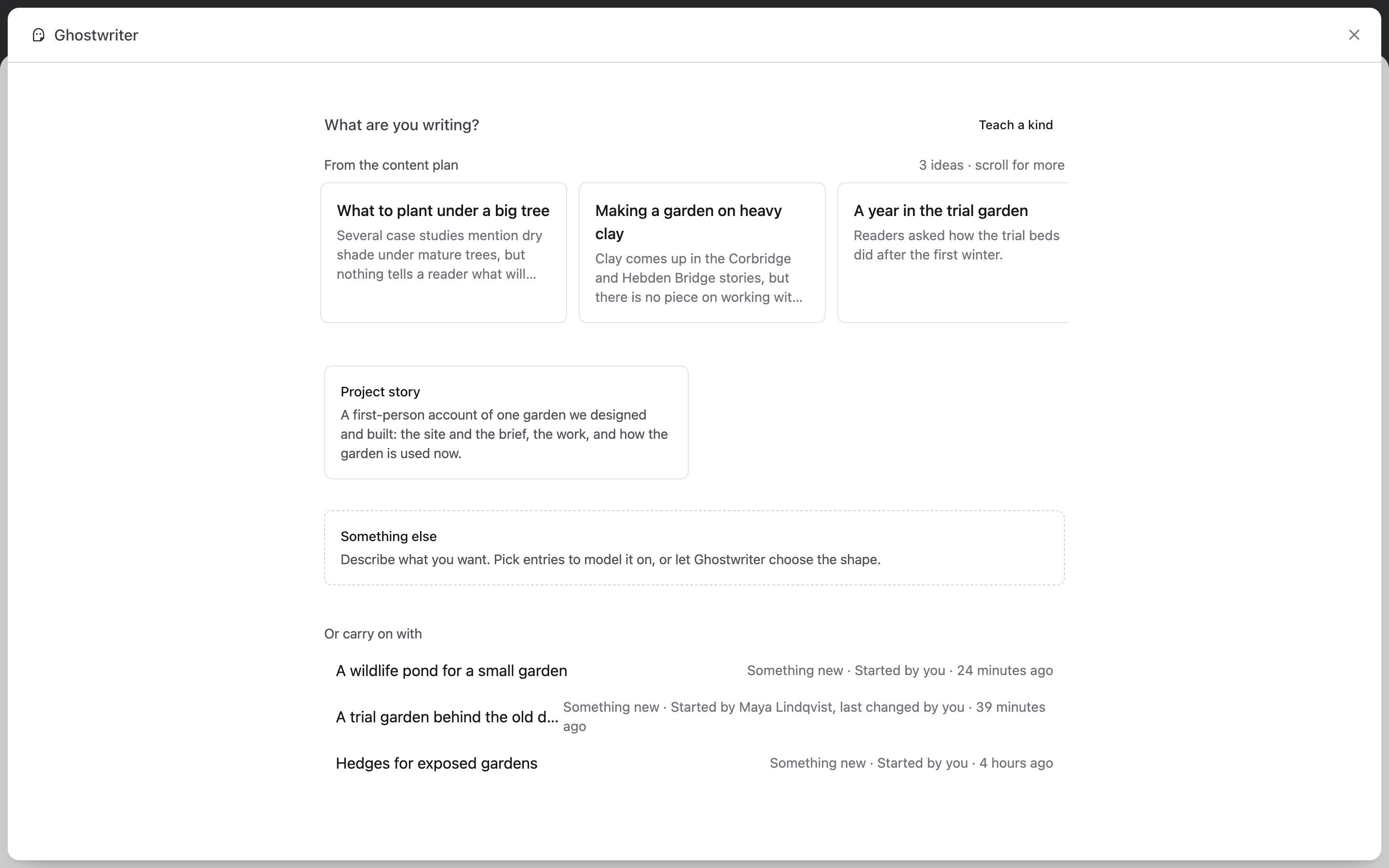
What are you writing?
Choose what this entry is:
- From the content plan: ideas waiting to be written. Choosing one fills in the brief from the idea.
- A kind you taught it, such as "Project story". It asks that kind's questions and models the entry on its examples. See Kinds of content.
- Something like what is already here: kinds Ghostwriter found by grouping the collection's entries by how they are built. Choosing one models the new entry on those.
- Something else: a general brief for anything.
- Or carry on with: pieces already under way, with who started each one.
- Teach a kind: teach Ghostwriter a new kind, from entries you pick.
The brief
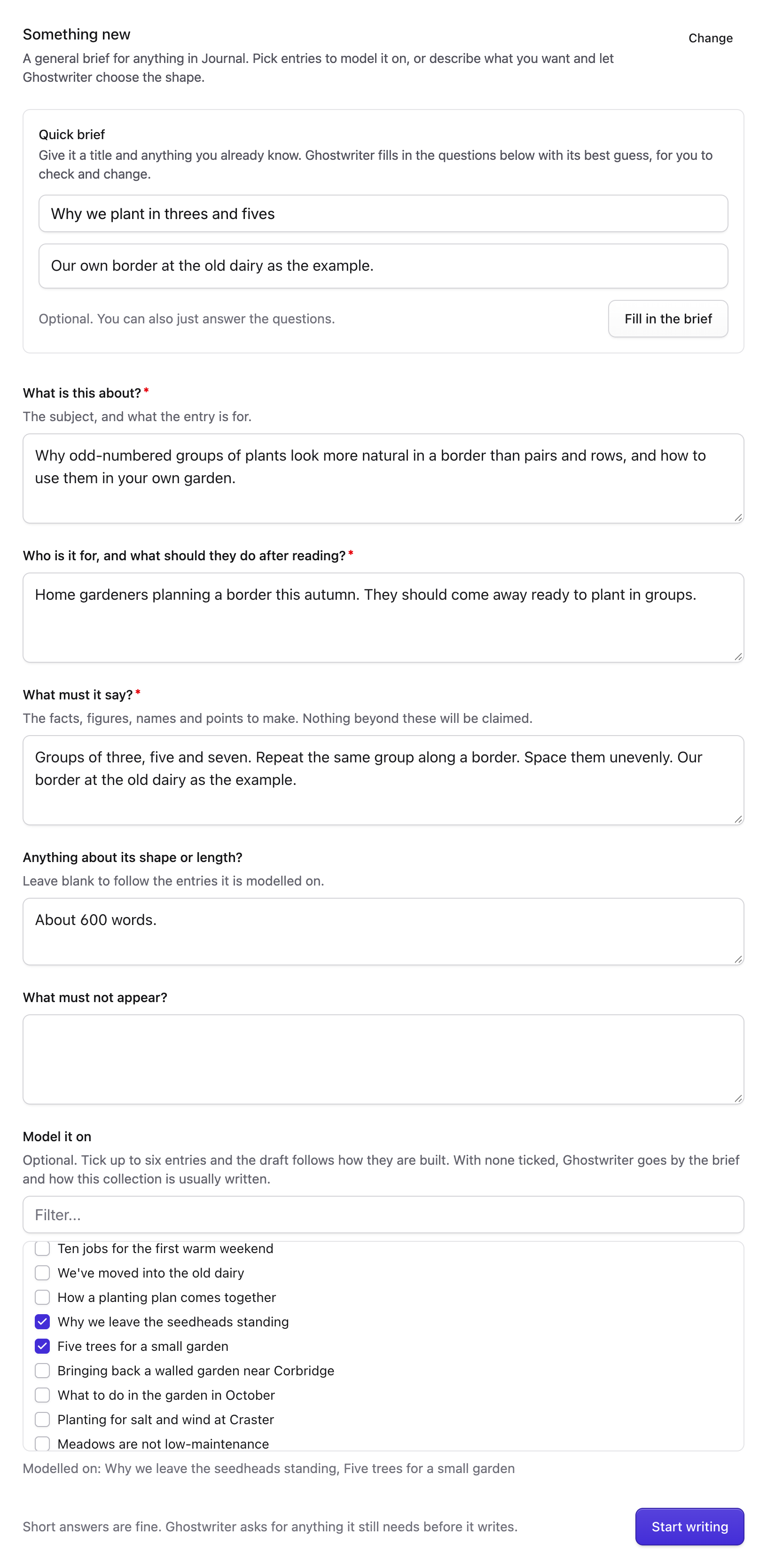
Answer the questions. Short answers are fine; Ghostwriter asks for anything it still needs before it writes.
Quick brief. Rather than answer every question, give a Working title and a few notes, then Fill in the brief. Ghostwriter fills in the questions from them, for you to check and change; Guess again tries once more. Anything in [square brackets] needs you: it never guesses facts about your organisation, its projects or its figures.
Model it on. Tick up to six entries and the draft follows how they are built. With none ticked, Ghostwriter goes by the brief and how this collection is usually written. A learned kind starts with its own examples ticked.
Then Start writing. An idea from the content plan fills the brief in by itself, with one model call.
Ghostwriter uses only facts from the brief and the conversation for anything about your organisation. It doesn't invent figures, quotes or client names. Widely known facts about the subject itself it may state, and says so in its reply.
The conversation
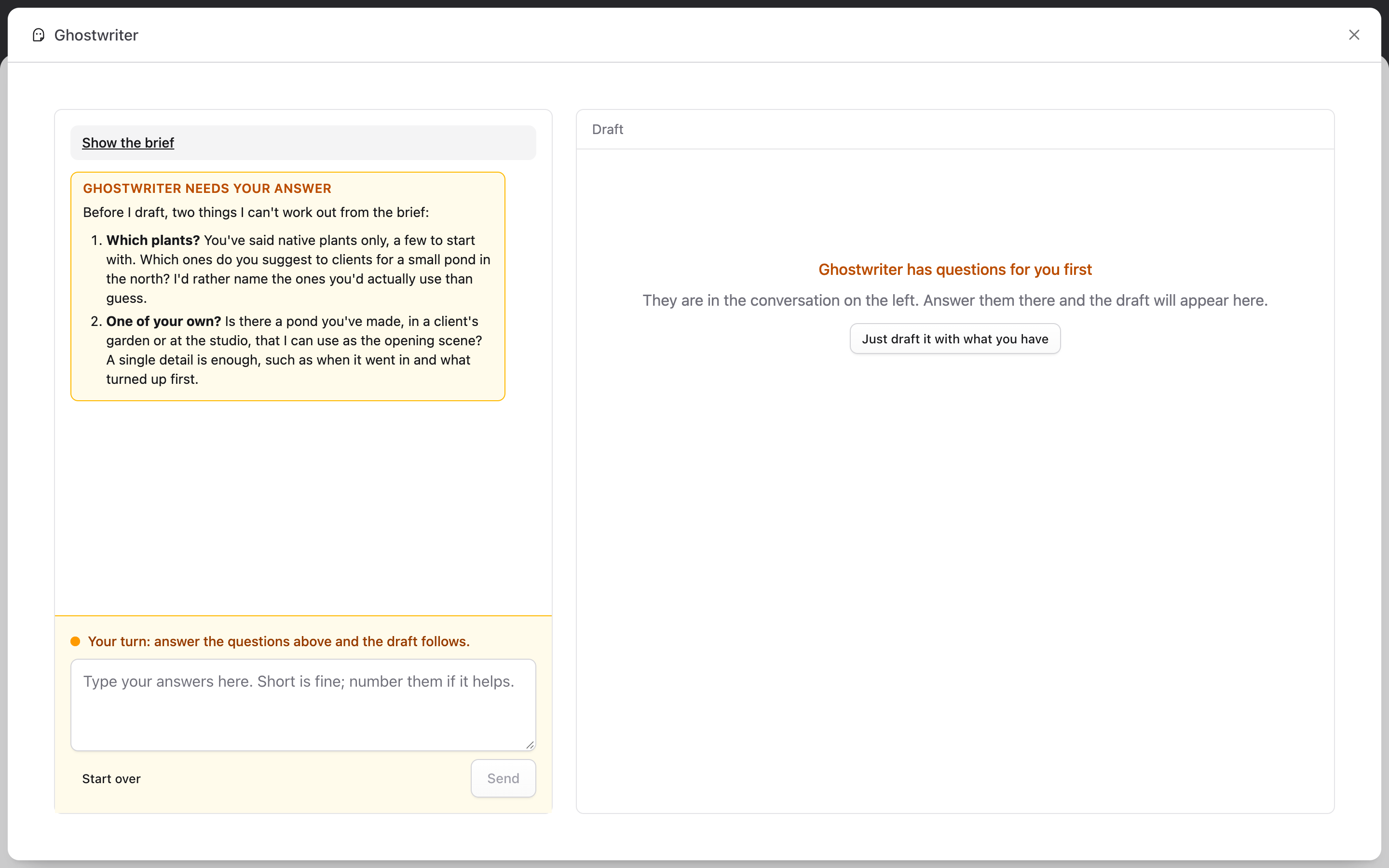
Ghostwriter writes on the first turn whenever it can. If it needs something only you know, it asks first, at most three questions. The panel makes that plain: the question is headed Ghostwriter needs your answer, the reply box says Your turn: answer the questions above and the draft follows. (or Your turn: answer above to carry on. once there is a draft), and Just draft it with what you have has it write now and mark the gaps.
Once there is a draft, ask for changes in plain words:
- "Make the opening shorter."
- "Add a section on cost, after the process."
- "Less formal."
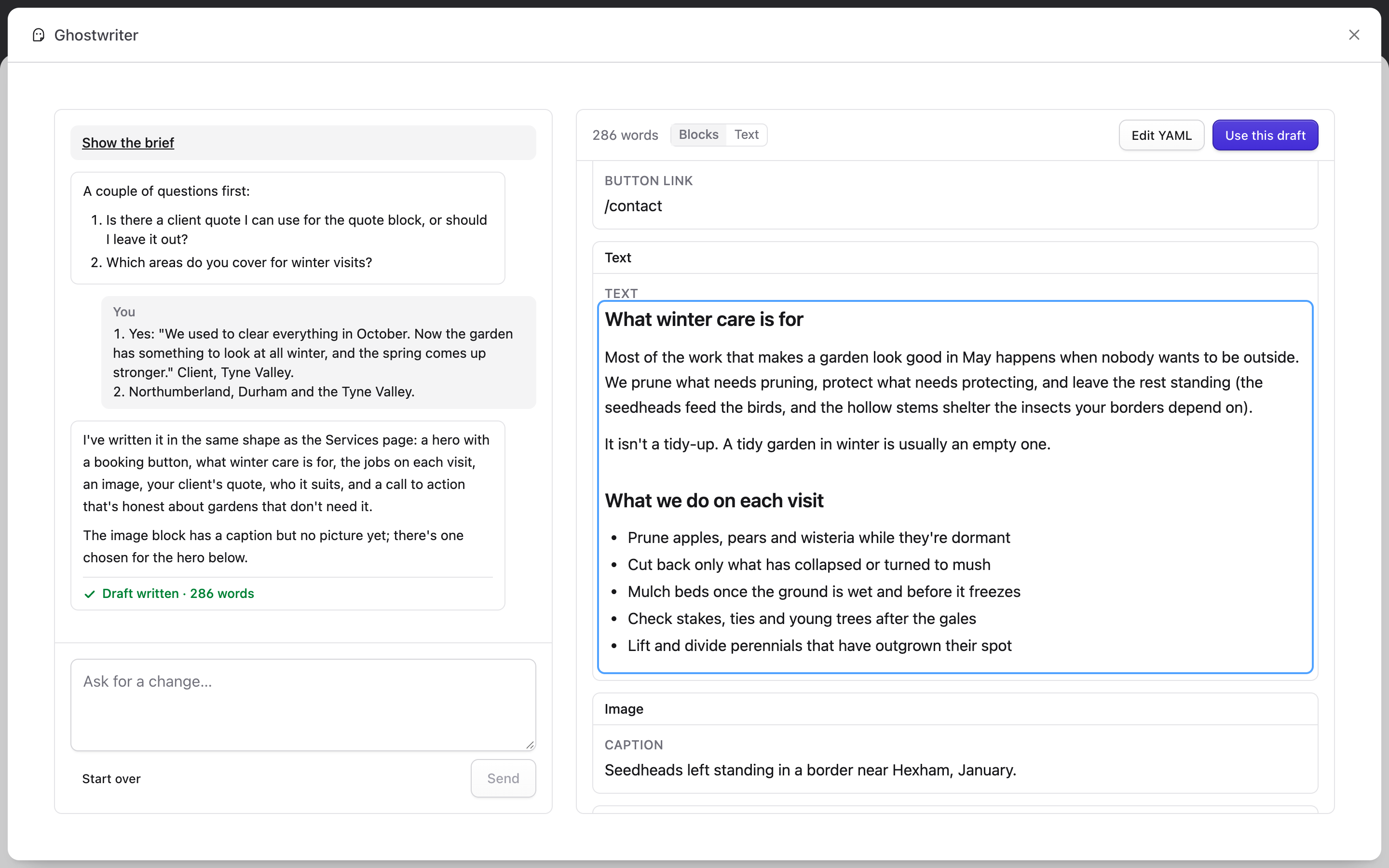
Press ⌘↵ (or Ctrl+↵) to send. While it works, a line and a timer say what it is doing ("Reading the brief…", "Thinking it through…", "Writing. Long drafts take a while…"); a draft usually takes a minute or two. Replies are shown formatted, with their lists and bold. A reply that changed the draft ends with a line such as Draft written · 286 words or Draft updated · 222 → 236 words (+14).
If a turn fails, see "That didn't work".
The draft
The draft sits on the right, laid out the way the entry is built: its fields, and its page-builder blocks in order.
- Blocks and Text switch between the full layout and just the words. Ghostwriter remembers your choice in this browser.
- Click any writing (or Tab to it) to change it. It's saved when you leave it; Esc puts back what was there. Enter finishes a one-line field; in longer text it starts a new line. Rich text stays rich: bold, links and lists are kept.
- Edit YAML opens the whole draft as YAML, to add, move or remove blocks. Most people never need it.
The word count is at the top. Below the draft, the Images section offers photos for the entry's image fields; see Images with a draft.
The panel follows the Control Panel's dark mode.
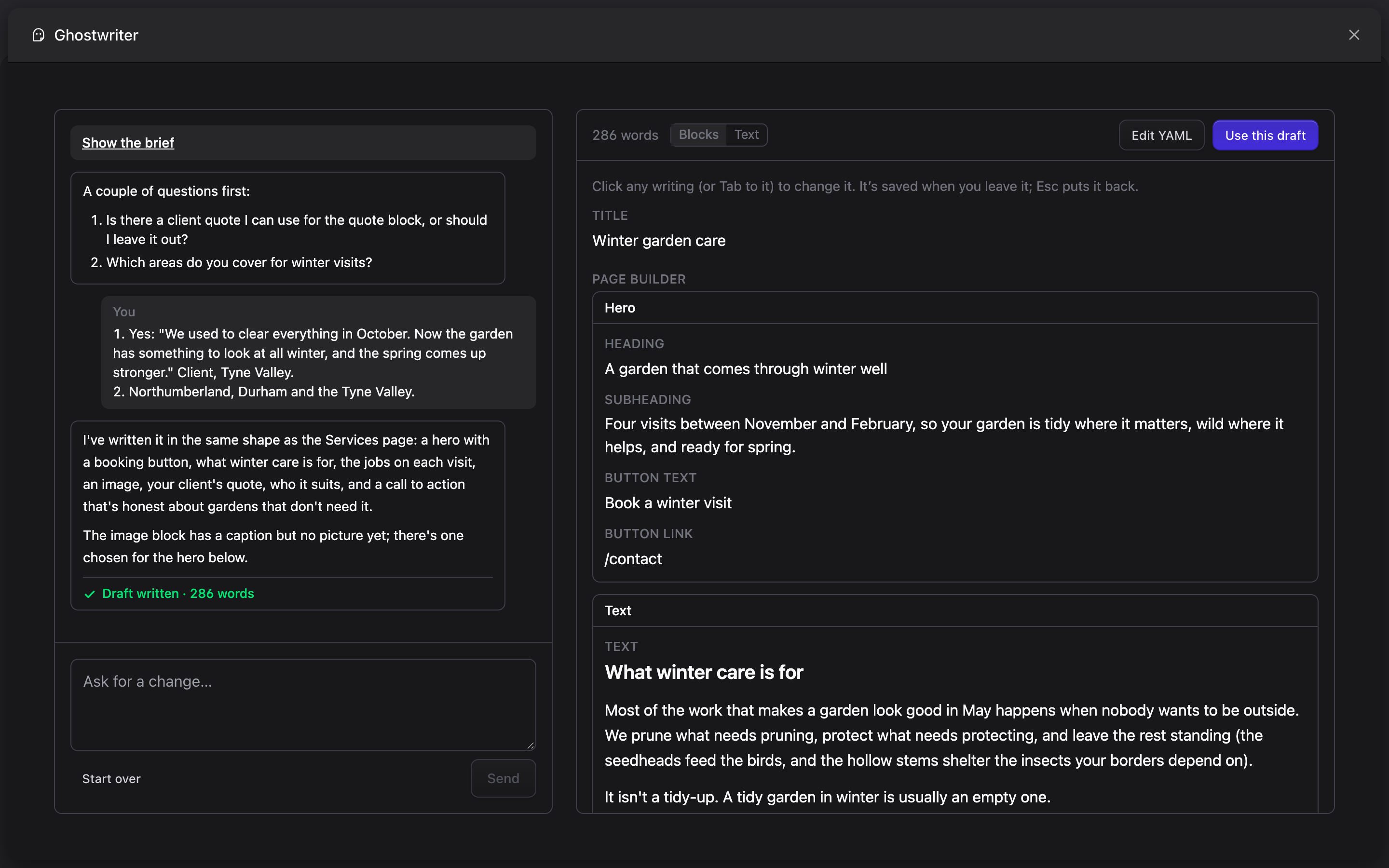
Use this draft
Use this draft puts the draft into the entry form underneath, field by field. Anything the draft doesn't cover keeps what was in the form.
- Nothing is saved or published. Check the form over, then save as you normally would.
- Using it again replaces the fields it covers.
When the draft leaves you something to do, one notice above the form lists all of it, under "Draft added to the form. Check it over, then save.", and stays until you close it. Without notes, a short message says the same and goes. The notes include:
- image fields marked with a striped placeholder, to replace before publishing;
- links still to set, which point to
https://example.comfor now (see house style); - fields and blocks the draft used that this blueprint doesn't have, and options that don't exist, which were left out.
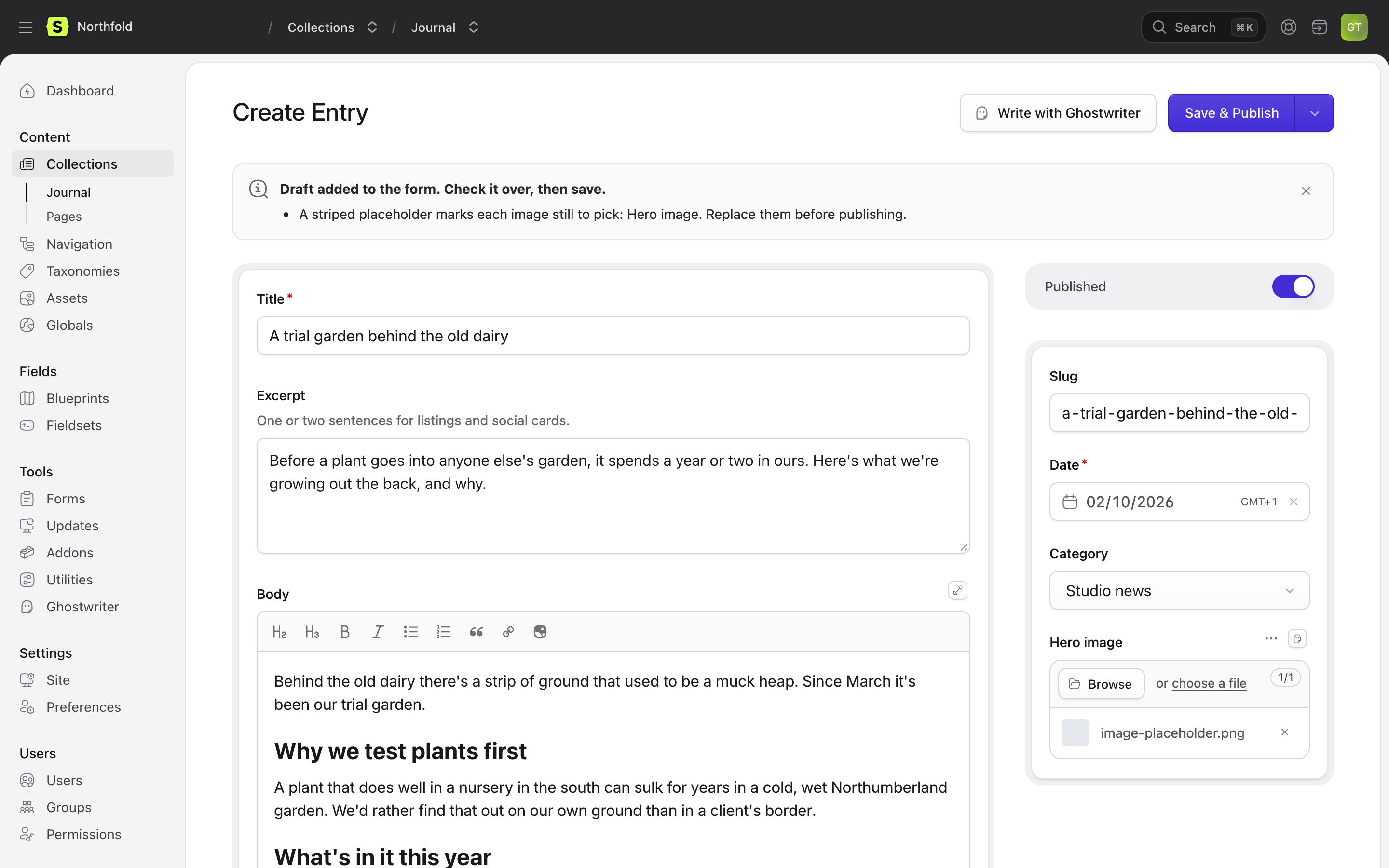
Carrying on later
The conversation is saved, and the panel carries on with the piece you were on:
- On the same screen, after Use this draft or closing the panel, Write with Ghostwriter opens the same piece again.
- Reloading the page opens it too: the address names the piece (
?ghostwriter=…). - Later, open it from In progress on the Overview, Or carry on with in the panel, or Resume on the content plan. A draft put into the form but not saved stays in all three.
Start over goes back to What are you writing? for a new piece. The earlier conversation isn't deleted; it stays on the Overview until it is removed.
A piece leaves In progress once its entry has been saved. Putting the draft into the form isn't enough.
Sharing conversations
Conversations are shared with everyone who may use Ghostwriter, so a colleague can pick a piece up where you left it. Each message shows who sent it. See Shared conversations.
Next: Editing an existing entry.